Sunday, November 04, 2007


Cygwin/X install Oracle 10.2.0.1 on OpenSolaris (build 75a) DomU at Linux Dom0 (64 bit)


Starting with Solaris Express build 75(75a) xVM/Xen are included as a standard part of Solaris Express for x86/x64. Oracle's installation procedure
seems to be a kind of evaluation performance and reliability for
next generation Solaris Xen Drops running as DomUs on top of Linux Dom 0.
Preferably CentOS 5 (RHEL 5) or Debian Etch 4.X.
Remote Oracle install has been performed due to ongoing issue with
setting up VNC on OpenSolaris (75a) DomUs at Linux Dom0


Installing the Cygwin/X X Window System per Jason Liu (University of Minnesota)


Obtaining the Installation Executable
1. Go to http://www.cygwin.com/.
2. Click on the navigation link to go to the “Cygwin/X Home.”
3. Somewhere on the main content of the Cygwin/X home page, there should be a Cygwin icon with the caption “Install Cygwin/X now.” Click on the link.
4. You will be prompted by your browser whether to open the file or save it. Choose to save the file, and save it to somewhere convenient, such as on your Desktop. You will delete this executable file after you are finished with the installation.
5. Double-click on the “setup.exe” that you just saved to start the installation process.
Installing Cygwin/X
1. The initial introduction dialog box for the Cygwin Setup will appear. Simply click the “Next >” button.
2. The next screen will ask you to Choose a Download Source. Make sure the “Install from Internet” choice is selected, and click the “Next >” button.
3. Now, you will be asked to Select Root Install Directory. The root directory should be something like “C:\cygwin” or “C:\Cygwin”. It is best to keep the root directory here.1 You should also decide whether to install Cygwin/X for all users, or just yourself. However, it is best to leave the Default Text File Type as “Unix / binary”. Click the “Next >” button.
4. The next dialog box will as for you to Select Local Package Directory. It is recommended that you choose the same location as where you saved the “setup.exe” installation executable, because you will be deleting this local package directory after you finish installing Cygwin/X. Click the “Next >” button.
5. At the screen titled Select Your Internet Connection, the default setting of “Direct Connection” should be fine, unless you use HTTP Proxies on your computer (most computers do not use proxies). Simply click the “Next >” button.
6. The next screen will ask you to Choose A Download Site. Choose one which seems to be reasonably close (i.e. in North America) — for instance, you probably will not want to choose any sites which end in .de or .au, as these websites are located in Germany and Australia, respectively. (Usually, the planetmirror.com site is reasonably fast. It should be near the bottom of the list.) Then, click the “Next >” button.
7. Now you will be prompted to Select Packages that you want to install as a part of Cygwin/X. This is quite possibly the most important step, as it determines how Cygwin/X will function. The instructions provided here will give you a minimal fully functioning Cygwin/X X server. Note that if you can also repeated click on
the circular double-arrow symbol next to the “Default” text (located next to each category name) in order to cycle through the four choices of “Default”, “Install”, “Reinstall”, and “Uninstall”. In general, you should leave the setting at “Default” and choose the packages individually.2
a. Click on the @ symbol next to the X11 category to expand it. Scroll down to the package that is called xorg-x11-base. Click the circular double-arrow symbol next it once3 so that the text changes from “Skip” to a version number. Note that if there are other packages that are directly related, they will automatically be selected as well. After selecting the package, click the @ symbol next to the X11 category to collapse the category back down.
b. Expand the Net category. Select the openssh package – this will allow you to run things like the SSH client and SFTP client.
c. Click on the @ symbol next to the Editors category to expand it. Choose a text editor that you are familiar with in case you wish to edit some of your Cygwin/X configuration files after installation. All of these text editors are the same as ones that you would find on most UNIX or Linux machines. Some popular choices include VIM, Emacs, X-Emacs, or N-Edit. Choose the text editor(s) that you wish to install, then click the @ symbol next to the Editors category to collapse the category back down.
While the above are the minimal packages that should be selected in order to have Cygwin/X run properly, you can see that there are many other optional packages that can be installed with CygwinX. The selection of these additional packages is not strictly needed, and is beyond the scope of this document. When you are finished selecting all of the packages that you wish to install as a part of Cygwin/X, click on the “Next >” button to begin the automated installation.
8. Now, you simply wait for Cygwin/X to install. First, compressed versions of all of the packages that you selected will downloaded to a Windows folder that you chose to be your Local Packages Directory. Then, the packages will be uncompressed and installed. When the installation is complete, you will get a dialog box that asks whether you would like to install a desktop icon and Start menu icon — the check boxes are selected by default. Simply click the “OK” button, and the next dialog box that pops up says “Installation Complete!” Simply click the “OK” button. Now you are ready to run Cygwin/X. However, there is one thing that should be done manually to make running the X Windows System as easy as possible.


Install OpenSolaris (75a) DomU at Linux Dom0 has been done exactly as in [1].
Tuning OpenSolaris (75a) DomU for Oracle installation procedure performed
as usual. View [2] for example.


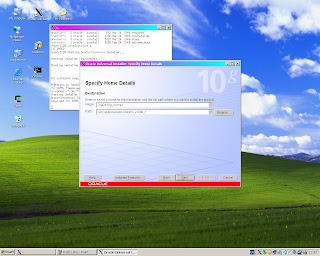
1. Start X11 Server on remote Windows XP desktop
and issue in X-Window:-


# xhost +<IP address of OpenSolaris DomU>
# ssh oracle@<IP address of OpenSolaris DomU>
[oracle@ServerSNV75A]$ export DISPLAY=<IP address of Windows XP desktop>:0.0
[oracle@ServerSNV75A]$ cd /Install/database
[oracle@ServerSNV75A]$ ./runInstaller &


Another option is to enable ssh "X11 forwarding" on OpenSolaris DomU by
editing /etc/ssh/ssh_config:-


ForwardX11 yes


and running


# svcadm restart network/ssh:default


Then issue in X-Window at Cygwin/X desktop:-


# xhost +<IP address of OpenSolaris DomU>
# ssh -X oracle@<IP address of OpenSolaris DomU>
[oracle@ServerSNV75A]$ cd /Install/database
[oracle@ServerSNV75A]$ ./runInstaller &


In this case you don't have to export DISPLAY environment variable.
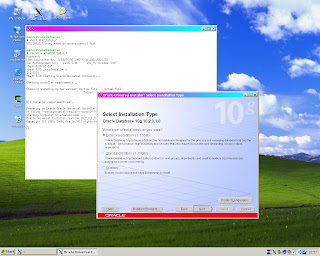


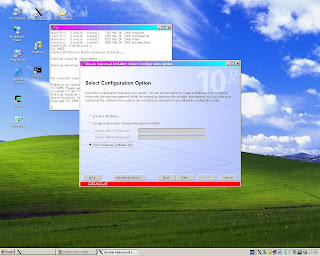
Restart Installer in advanced mode and select "Install Database Software Only" option:-


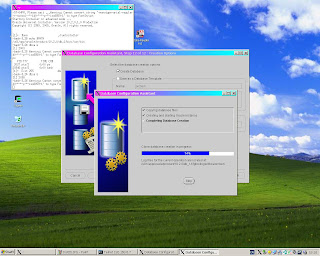
Run "dbca" and create database:-


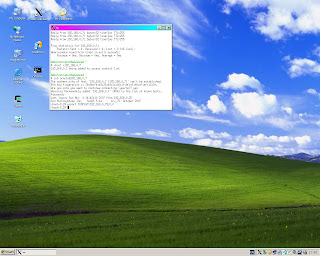
Run "netca" to create LISTENER and perform Local Net Service Name Configuration:-
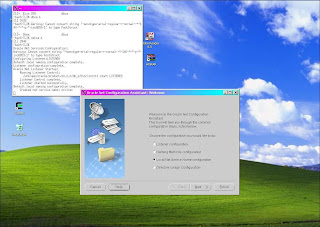


Next run on Soalaris DomU:-


[oracle@SolarisSNV75A]$ vi /var/opt/oracle/oratab
To replace "N" by "Y" at the end unique entry line
[oracle@SolarisSNV75A]$ emctl stop dbconsole
[oracle@SolarisSNV75A]$ dbshut
[oracle@SolarisSNV75A]$ lsnrctl stop
[oracle@SolarisSNV75A]$ lsnrctl start
[oracle@SolarisSNV75A]$ dbstart
[oracle@SolarisSNV75A]$ isqlplusctl start
[oracle@SolarisSNV75A]$ emctl start dbconsole


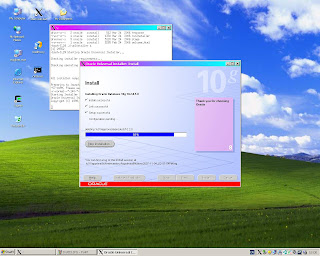
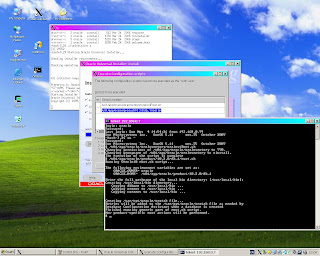
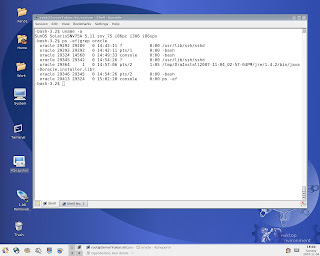
Solaris (SNV 75a) console during Installer run:-


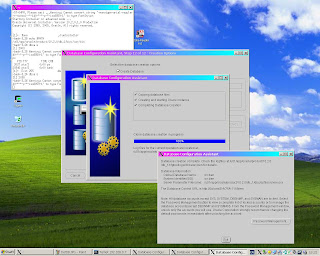
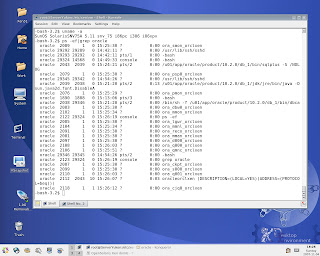
Solaris (SNV 75a) console during "DBCA" run:-


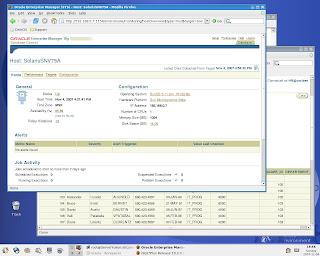
OS detection by Oracle Enterprise Manager Console running at Linux Dom0 side:-


References
1.Install Xen 3.1 Solaris domU (64 bit) under CentOS 5 dom0 (64 bit)

2.http://oracle-base.com

Monday, October 29, 2007


Oracle's 11g Automatic Storage Management on CentOS 5 (x86_64)


Command "ipcs -m" appears to be almost useless for getting Oracle 11g shared memory
allocation maps.
The basic steps for shared memory monitoring and tuning /dev/shm to handle instances with MEMORY_TARGET more then 1024M had been explained in Tanel Poder’s blog ([1]).
Posting bellow follows advices from Tanel Poder’s blog to build Oracle 11g (64 bit) ASM database with MEMORY_TARGET 1.1 GB on CentOS 5 .
Changes have been made to SPFILE after database install. Restarting database I've got "ORA-00845: MEMORY_TARGET not supported on this system" due to insufficient size
of tmpfs. View [3] regarding definition of MEMORY_MAX_TARGET and MEMORY_TARGET.
I've tuned OS configuration files and oracle shell environment for 64 bit Oracle 11g as advised in [2] for 32 bit Oracle 11g .


Install ASMLIB:-


# rpm -Uvh oracleasm-2.6.18-8.el5-2.0.4-1.el5.x86_64 \
oracleasmlib-2.0.3-1.el5.x86_64 \
oracleasm-support-2.0.4-1.el5.x86_64


Then run:-


# /etc/init.d/oracleasm configure
# /etc/init.d/oracleasm enable


Create ASM disks as requiered (for example):-


# /etc/init.d/oracleasm createdisk VOL1 /dev/sda7
# /etc/init.d/oracleasm createdisk VOL2 /dev/sda8


Tune /dev/shm to handle Oracle Instance with MEMORY_MAX_TARGET 1.2 GB.
MEMORY_MAX_TARGET initialization parameter is a maximum amount of memory that you would want to allocate to the database. It determines the maximum value for the sum of the SGA and instance PGA sizes.Please, view [3] for detailes.


Start OUI in advanced mode and create ASM instance in ORACLE_HOME=/u01/app/oracle/product/11.6.0.1/asm


Start OUI in advanced mode and create production instance in ORACLE_HOME=/u01/app/oracle/product/11.6.0.1/db_1


Shared Memory report for production instance:-


Mapping production SGA on it's LGWR daemon address space:-


Mapping ASM SGA on it's LGWR daemon address space:-


Run "ls -l /dev/shm" :-


EM screens snapshots:-


OS detection screen:-


Initialization parameters screen:-


ASM disks used by 11g database:-


Database files layout:-


References
1.http://blog.tanelpoder.com/2007/08/21/oracle-11g-internals-part-1-automatic-memory-management/
2.http://oracle-base.com
3.http://download.oracle.com/docs/cd/B28359_01/server.111/b28310/memory003.htm#BGBCIBHF
4.http://download.oracle.com/docs/cd/B28359_01/server.111/b31107/asminst.htm

Saturday, October 20, 2007


Install Solaris DomU (64 bit) on OpenSUSE 10.3 (x86_64) Dom0


Installing OpenSUSE 10.3 on the box I selected Xen entry into Grub menu after
first phase was completed and system rebooted for final configuration.
It brought me into text mode setup very similar graphical one when you
select ordinary kernel. During this setup I was not given an option to configure any one of three network interfaces (Dual Marvell Yukon Gigabit Ehernet integrated
on the board plus Realtek 8139 Ethernet plugged into PCI slot ).
I have to notice, that SLES 10 SP1 behaves exactly the same way, but during
text mode setup it gave me an option to configure each one of ethernet
interfaces on the box.
When OpenSUSE 10.3 got loaded on top of it's Xen 3.1, ifconfig reported:-


As eth0 was selected one of interfaces provided by Dual Marvell Yukon
Gigabit Ethernet.Yast reported that interface eth0 was configured as DHCP.
Yast also properly recognised all three ethernet interfaces,but configured
only eth0.


Despite that I brought eth0 up with static IP address and
double checked "brctl show" report. It kept stay the same.


Then I made sure that box is available on local network and
replaced corrupted file "libvirt.py" as advised in [1]:-


rpm2cpio libvirt-python-0.3.0-30.i586.rpm | cpio -idv
cd usr/lib/python2.5/site-packages/
cp libvirt.py /usr/lib64/python2.5/site-packages/


Starting from this point I reproduced procedure described in details in [2]:-


Then installed Tight VNC on Solaris DomU ([3]) :-


I've attempted to assign eth0 static IP address before loading Xen 3.1 Kernel
coming with OpenSUSE 10.3. However, this action caused system to hang at boot up.
I've also tried to perform complete install OpenSUSE 10.3 (x86_64) along with Xen in graphical mode (manually configuring ethernet interfaces with static IP addresses)
and after all boot into Xen Kernel. System hanged at boot up again.
I am not sure is this issue hardware dependent or no. Just in case I've also
made a snapshot of "xm info" report:-


References
1.http://lxer.com/module/forums/t/26203/
2.http://lxer.com/module/newswire/view/93016/index.html
3.http://lxer.com/module/newswire/view/93273/index.html

Friday, October 12, 2007


Latest and Greatest Solaris Xen 'drop'


I just have decided that snapshots of the most recent posts at OpenSolaris Xen
Discuss forum would be the best form of advertising regarding upcoming Solaris
Xen Drop.


Jerry Kemp wrote:
> So it would be correct to state that from Solaris Express build 75 on,
> xVM/Xen will be included as a standard part of Solaris Express for x86/x64?

Yes.

MRJ

Tuesday, October 09, 2007


Install Xen 3.0.4 OpenSolaris DomU on SLES 10 SP1 Dom0 (64 bit)


In general installation follows [1]. However, when SLES 10 is placed on top of it's Xen 3.0.4, "ifconfig" shows network interface eth0 without any IP and brings up eth1 with original IP value been assigned to eth0. Command "brctl show" reports that virual network interfaces peth0,vif0.0 are connected to bridge xenbr0. To make OpenSolaris PVM be able to communicate with SLES 10 SP1 Dom0, i did:-


# ifconfig eth1 down
# ifconfig eth0 up "Original IP address" netmask 255.255.255.0


"brctl show" report kept it's output the same. Procedure described in [1] went smoothly
and properly built OpenSolaris DomU on SLES 10 SP1 Dom0
Start up screenshots follows bellow:-


References

1.Install Xen 3.1 Solaris DomU on CentOS 5 or Debian Etch Dom0 (64 bit)

Tuesday, October 02, 2007


Install Oracle 10.2.0.1 on OpenSolaris DomU at Linux Dom0 (64 bit)


This installation has been done to evaluate OUI (disk I/O) performance on OpenSolaris DomU
versus OUI performance on Linux (CentOS 4.5,5.0) HVM VMs on the same box.
Difference appears to be very noticeable.


Regarding VNC install on OpenSolaris DomU at Linux Dom0 view "Install VNC on Solaris DomU at CentOS 5 or Debian Etch Dom0 (64 bit) at Lxer.com ([2]).
Login as "oracle" to OpenSolaris DomU graphical console.


As root tune oracle's project , create required directories ,then "su - oracle" and create .bash_profile as advised in [1].
Start OUI in advanced mode with option "Install software only".


When done, run "dbca" and create database:-


Then run "netca" to create LISTENER and perform Net Service Name configuration:-


Next :-


[oracle@ServerSun511]$ vi /var/opt/oracle/oratab
To replace "N" by "Y" at the end unique entry line
[oracle@ServerSun511]$ emctl stop dbconsole
[oracle@ServerSun511]$ dbshut
[oracle@ServerSun511]$ lsnrctl stop
[oracle@ServerSun511]$ lsnrctl start
[oracle@ServerSun511]$ dbstart
[oracle@ServerSun511]$ isqlplusctl start
[oracle@ServerSun511]$ emctl start dbconsole


Verify connections to Oracle Instance on OpenSolarisDomU from Linux Dom0:-


References.
1.http://www.oracle-base.com/articles/10g/OracleDB10gR2InstallationOnSolaris10.php
2.http://lxer.com/module/newswire/view/93273/index.html